- Home
STAY IN TOUCH GUIDES/ARTICLES SHOPPING ONLINE SECURITY RESOURCES ABOUT US INFORMATION
|
Guide to Connecting Computer Peripheral to Back Panel
Step 12: Connect Computer Peripheral to Back Panel
Computer Peripheral Installation
You have followed the Build Your Own Cheap Computer tutorial and installed the internal components. You are now ready to install the external peripherals
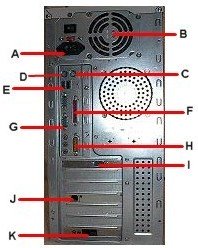
Computer Rear Panel Connectors
- A: Power Connector - The power connector is a 3-prong male connector which enables you to connect a power cable to the computer Port A to obtain power from an electrical outlet.
- B: Power Supply Unit (PSU) - The power supply unit provides all the electrical power needed by all the components of your computer system. The visible external fan provides adequate ventilation for the PSU by exhausting hot air from it.
- C: Mouse Port - The mouse is a computer peripheral and is also a pointing device. It enables you to move and select items on the screen. It is the most commonly used pointing device. The mouse is connected to Port C. This port is also called a mini-DIN or PS/2 connector. Click here to browse mouse
- D: Keyboard Port - The keyboard is one of the input devices that allows you to enter instructions and information into a computer.
The keyboard is connected to Port D. (See diagram above). This port is also known as the mini-DIN or PS/2 connector. The older computers came with a larger port known as a DIN connector. Click here for some cheap computer keyboards.
- E: USB Port - (USB) Acronym for Universal Serial Bus. This Port was developed and invented by Ajay Bhatt while working for Intel. It is intended to replace the different kinds of serial and parallel ports. The old USB 1.0 supported data transfer rates of up to 12 Mbps but the upgrade to USB 2.0 increased data transfer rates by approximately 40 times to 480 Mbps.
This port can connect up to 127 computer peripherals (such as mouse, modems, keyboards, etc.) all at once. It also enables hot-swapping which is being able to connect and disconnect peripherals without powering down the PC. Click here to read about USB Ports.
- F: Parallel Port (Printer Port) - The parallel port is a 25-pin female connector (DB-25). It is an interface for connecting external devices such as a printers and computers that require relatively high bandwidth. It supports bi-directional communications.
- G: Serial Port (COM Port) - This port is a 9-pin male connector (DB-9) and enables serial communication with a transfer rate of 1 bit. This port can be used to connect a computer peripheral such as a modem, mouse, etc.
- H: Game Port - The game port is a 15-pin female analog port used to connect game controllers such as joysticks. It can also be used as a Musical Instrument Digital Interface (MIDI) Port for connecting a device such as a synthesizer and is located on the sound card.
- I: Monitor Port - The monitor is a very important computer peripheral that displays images and text generated by the computer. The monitor is connected to Port I which is a 15-pin female connector called a VGA Port. Present computers also use a DVI port for connecting a monitor. New monitors come with DVI and VGA ports. Browse here for great deals on some cheap computer monitors.
- J: Ethernet Port (RJ-45) - The ethernet port accepts an ethernet cable which allows you to communicate on a network that runs Transmission Control Protocol/Internet Protocol(TCP/IP).
This port resembles a regular phone jack but is slightly wider and is generally located on the Network Interface Card (NIC) or integrated on the motherboard.
- K: Modem - The word 'Modem' is a contraction of the words Modulator-Demodulator. It is typically used to send digital data over a phone line. The modem shown in the above diagram is only used for dial-up internet connections. Dial-up internet is mostly used in remote and rural areas where broadband is not prevalent. If you want to be able to surf the Internet or send or receive email, your computer system will need one.
There is another type of modem that is now widely used by Broadband Internet Providers. It is called a Broadband modem and is a device that allows a PC or a router to receive internet access. Click here to see my Modem Guide.
Click Here to go to Step 13: Post Assembly Check
Back / Next
Click here to read: "What are Computer Peripherals?".
Browse here for all the steps in the
Build Your Own Cheap Computer tutorial
Return from Computer Peripheral to
Cheap Computer Home Page
Enjoy this page? Please pay it forward. Here's how...
Would you prefer to share this page with others by linking to it?
- Click on the HTML link code below.
- Copy and paste it, adding a note of your own, into your blog, a Web page, forums, a blog comment,
your Facebook account, or anywhere that someone would find this page valuable.
|
|
|