The processor (CPU), as we all know, is the 'master chip' in your PC that reads and executes program instructions which are output to a display. Click here to view some CPUs
There are 2 major CPU manufacturers - Intel and AMD.
Processors (CPUs) are delicate components so handle them gently.
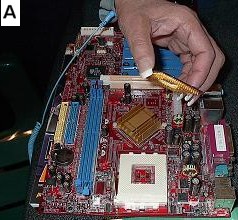
First action before installing the CPU is to prepare the Zero Insertion Force (ZIF) socket. That means lifting the locking lever outwards and upwards completely to unlock the socket.
Using anti-static equipment, carefully lift the processor from its packaging and install it making sure to properly align processor and socket. Exercise extreme care to prevent bending any of the pins.
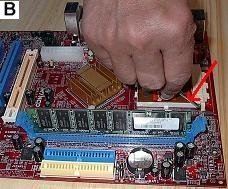
The CPU should just drop into the socket without any resistance. After making sure that the CPU processor is properly installed, carefully lower and lock the lever.
Diagram B shows the ZIF socket lever being lowered.
Install the Heat Sink/Fan Assembly:
Your prized computer processor would be 'toast' without the proper heat sink.
After the installation of the CPU, install the heat sink/fan assembly.
If the heat sink came with a thermal pad or tape on it, you do not need to use thermal compound. In the event that it does not come with a thermal pad or tape, you need to use thermal compound to optimize heat transfer between the CPU and heat sink.
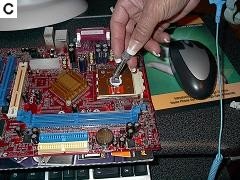
Apply a small amount (about the size of a rice grain) thermal compound to the heat spreader of the CPU. Use a flat edge (like a credit card) to evenly spread compound on heat spreader. (See Diagram C below).
To install the heat sink/fan assembly, start by placing the fan flat against the CPU - not at an angle - clip one side of the heat sink to one bracket, secure the opposite clip to the other bracket and lock the lever down.
STOP!!! - Connect CPU fan cable to its appropriately marked motherboard CPU fan header right now.
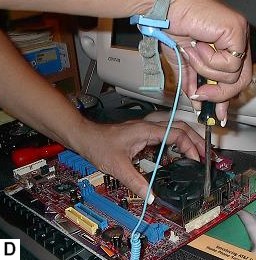
EXERCISE EXTREME CAUTON - It is extremely easy to damage CPUs while installing the heat sink/fan assembly. (See Diagram D below).
Please note the anti-static wrist strap being worn above. This strap will help to protect your computer components from static electricity damage. Click here to read my article and learn more about Static Electricity.
Enjoy this page? Please pay it forward. Here's how...
Would you prefer to share this page with others by linking to it?
Click on the HTML link code below.
Copy and paste it, adding a note of your own, into your blog, a Web page, forums, a blog comment,
your Facebook account, or anywhere that someone would find this page valuable.